An LMS should be accessible because every learner should have a fair opportunity to access and finish their learning.
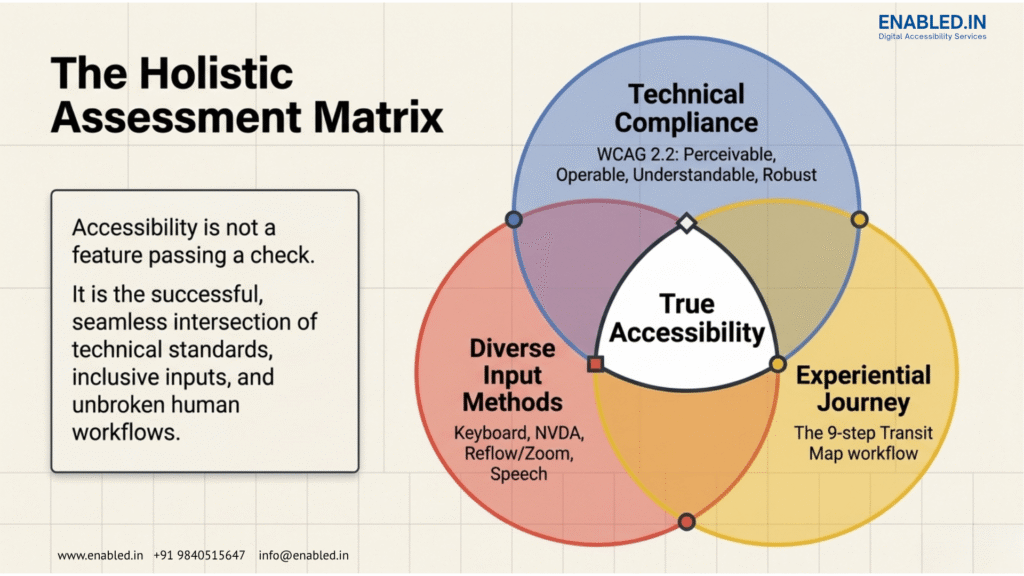
Accessibility involves more than just checking if a button has the right label. It’s also about ensuring a page passes an automated scan.
The real question is:
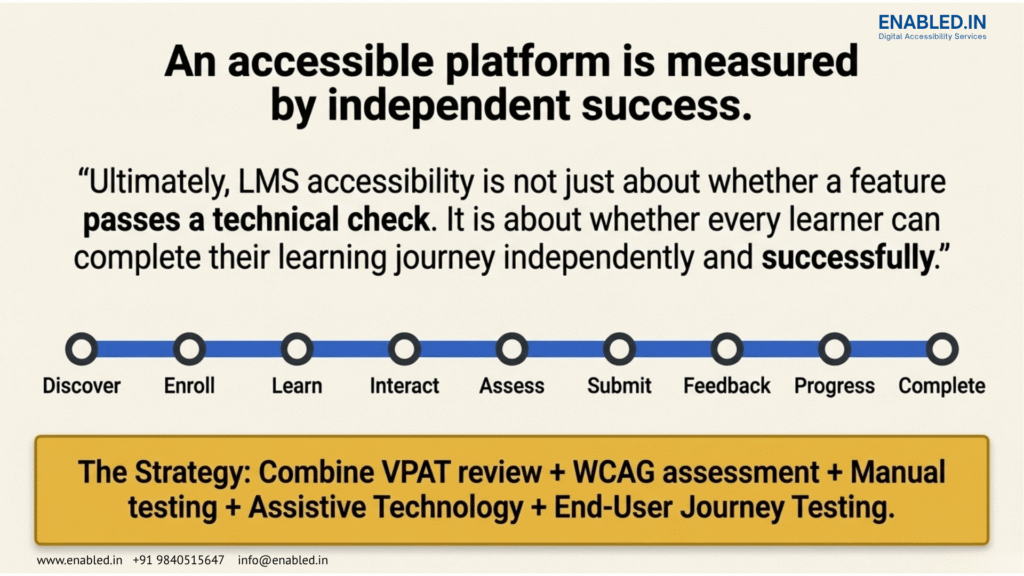
Can every learner independently access, understand, navigate, join in, finish, and track their learning journey?
A learner’s journey starts with login. It continues through course discovery and enrollment. Next, learners access learning content like videos, quizzes, and assignments. Feedback and progress tracking come afterward. Finally, the journey concludes with course completion.
If a learner faces an accessibility barrier at any of these stages, the learning experience can be affected.
This is why an LMS accessibility assessment should look at the whole learner journey.
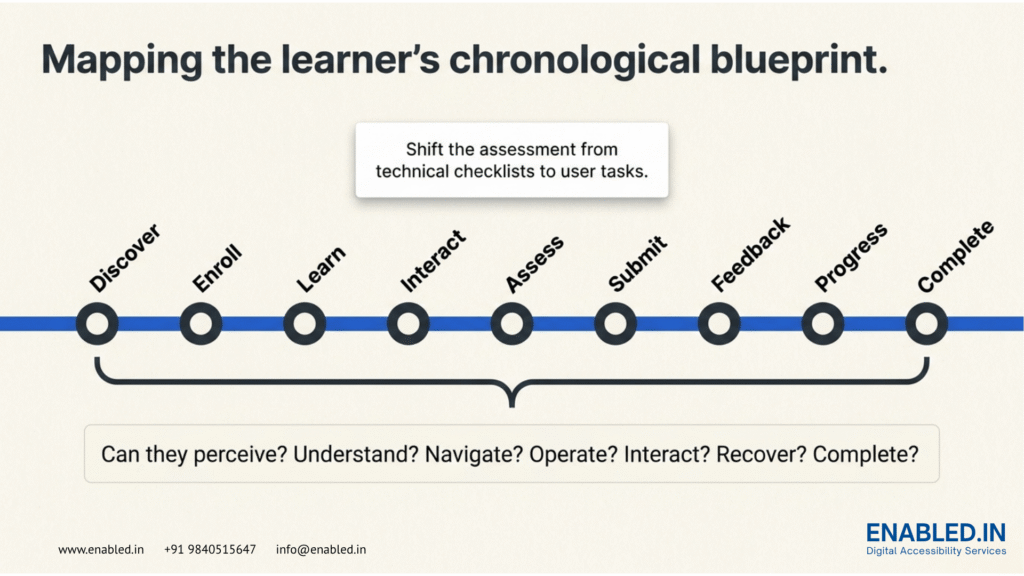
Access → Navigate → Discover → Enroll → Learn → Interact → Assess → Submit → Receive Feedback → Track Progress → Complete
An effective assessment can combine several methods. WCAG-based testing, manual testing, and assistive technology testing are included. It also involves learning content review, VPAT/ACR review, and real learner journey testing.
Need to assess your LMS accessibility?
Enabled.in can help organizations evaluate accessibility across the LMS learner journey and identify areas that may need improvement.
Why Should an LMS Be Accessible?
An LMS is the main environment where learners access online education and training.
If important parts of the platform are inaccessible, learners may not be able to participate independently.
For example:
- A learner may not be able to log in.
- A screen-reader user may not understand the dashboard.
- A keyboard user may not be able to open a course.
- A learner may not be able to access important information in a video.
- A quiz may not work with a keyboard.
- An assignment may require an inaccessible drag-and-drop interaction.
- Feedback may not be available in an accessible format.
- A certificate PDF may not be accessible.
These are not simply technical problems.
They can become learning barriers.
That is why accessibility should be evaluated from the learner’s point of view.
LMS Accessibility Should Follow the Learner Journey
A useful way to assess an LMS is to track the learner’s journey. Start from the beginning and continue to the end of a course.
1. Access the LMS
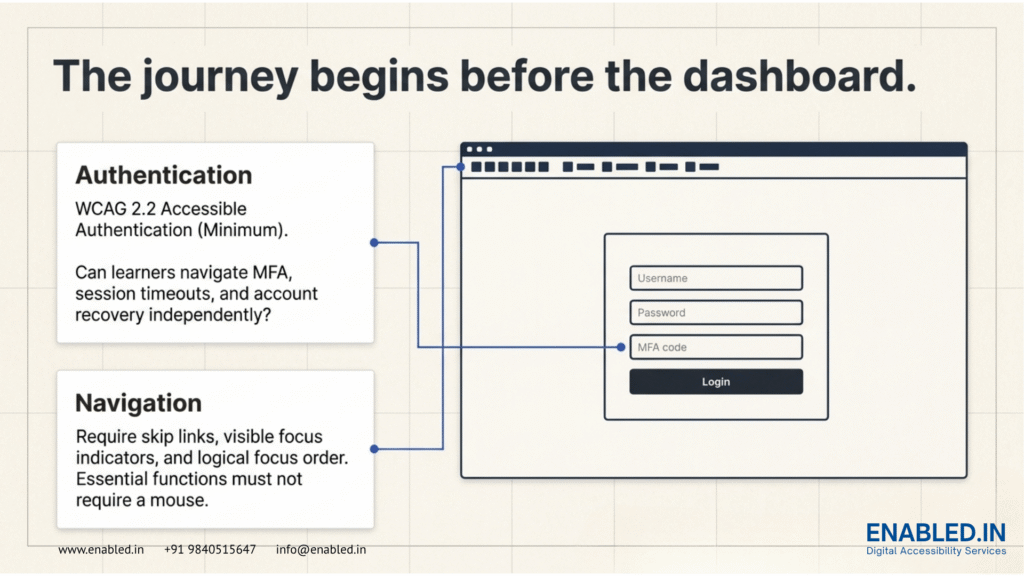
The learner journey starts with access.
Learners should be able to:
- Register
- Log in
- Reset a password
- Complete authentication
- Use MFA or OTP where required
- Understand authentication errors
- Recover from account problems
If a learner cannot log in independently, the learning journey stops immediately.
How Enabled.in can help
Enabled.in can assess login, registration, and password reset. It also evaluates authentication and error messages. Keyboard access and relevant assistive technology workflows are assessed as part of an LMS accessibility assessment.
2. Navigate the LMS
After login, learners need to move through the LMS.
They may need to access:
- Dashboard
- Courses
- Lessons
- Assignments
- Quizzes
- Grades
- Messages
- Settings
Navigation should work with different input methods.
Test:
- Keyboard navigation
- Skip links
- Headings
- Landmarks
- Menus
- Focus order
- Focus visibility
- Page titles
- Link names
- Navigation consistency
Keyboard accessibility is an important part of WCAG. Users should be able to operate functionality through a keyboard interface where applicable.
How Enabled.in can help
Enabled.in can perform manual keyboard testing and review navigation, focus order, headings, landmarks, menus, links, and interactive controls.
3. Understand the LMS Dashboard
The dashboard often tells learners what they need to do next.
It may show:
- Current courses
- Course progress
- Deadlines
- Notifications
- Grades
- Completed activities
- Pending activities
- Messages
An accessible dashboard should make this information understandable.
Information should not depend only on:
- Color
- Icons
- Position
- Visual styling
For example, a learner should not have to identify a green icon to understand that a course is complete.
How Enabled.in can help
Enabled.in can review dashboard headings, labels, widgets, status information, notifications, progress indicators, and other important learner information.
4. Find a Course
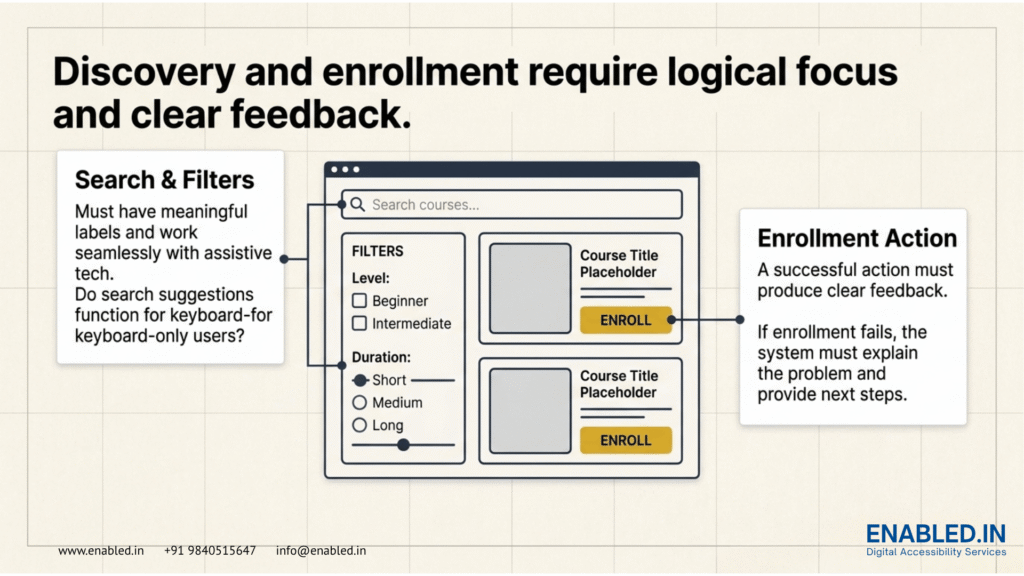
Course discovery is another important step.
Learners may use:
- Search
- Filters
- Sorting
- Pagination
- Categories
- Search suggestions
- Course cards
If search or filtering is inaccessible, a learner may not be able to find the course they need.
How Enabled.in can help
Enable.in can test course search, filters, sorting, and search results. It also tests pagination, links, buttons, and other course discovery features as part of the learner journey.
5. Enroll in a Course
After finding a course, the learner needs to enroll.
Test:
- Enrollment buttons
- Enrollment forms
- Required fields
- Confirmation messages
- Error messages
- Enrollment status
A learner should know whether the enrollment was successful.
If something goes wrong, the system should clearly explain the problem and what the learner should do next.
How Enabled.in can help
Enabled.in can test enrollment as a complete task, including forms, controls, confirmation messages, and error handling.
6. Access Learning Content
The main purpose of an LMS is learning.
Content can include:
- Text
- Images
- Headings
- Tables
- Links
- PDFs
- Presentations
- Documents
- Audio
- Video
- Interactive activities
Content should be structured so that learners can understand it using different technologies.
Images that communicate important information should have appropriate alternatives.
Documents should also be reviewed when they are required to complete the course.
How Enabled.in can help
Enabled.in can assess relevant learning content as well as the LMS interface.
This can include:
- Document accessibility
- Image alternatives
- Headings
- Reading order
- Tables
- Links
- Content structure
7. Watch Videos and Listen to Audio
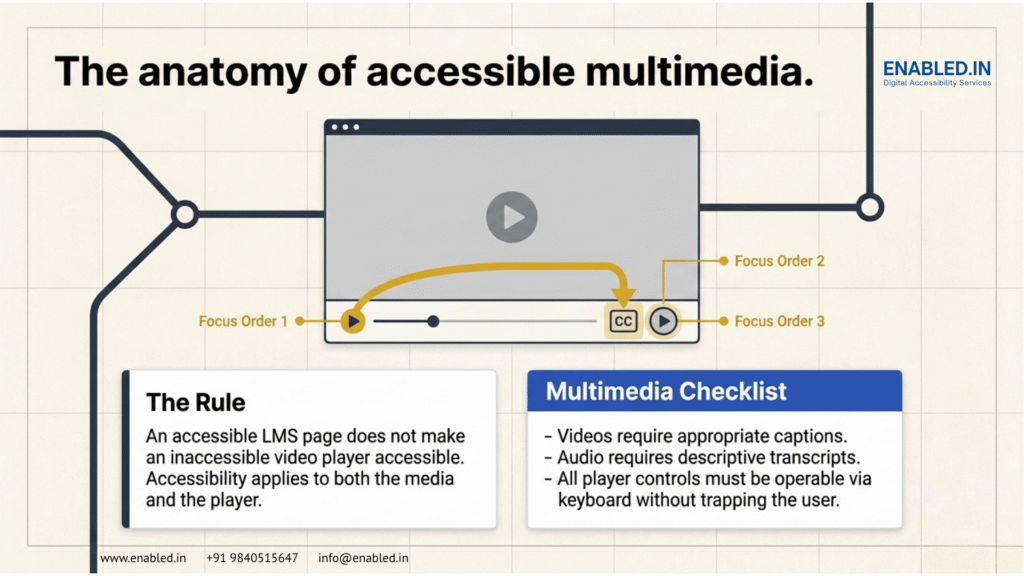
Video and audio are common in online learning.
Accessible media may require:
- Captions
- Transcripts
- Accessible media controls
- Alternatives for important visual information
- Keyboard-accessible controls
The media player itself also needs to be considered.
A video can have captions but still create barriers if the learner cannot operate the player.
How Enabled.in can help
Enabled.in can assess media accessibility, including captions, transcripts, controls, keyboard operation, and relevant media-player accessibility.
8. Complete Lessons and Interactive Activities
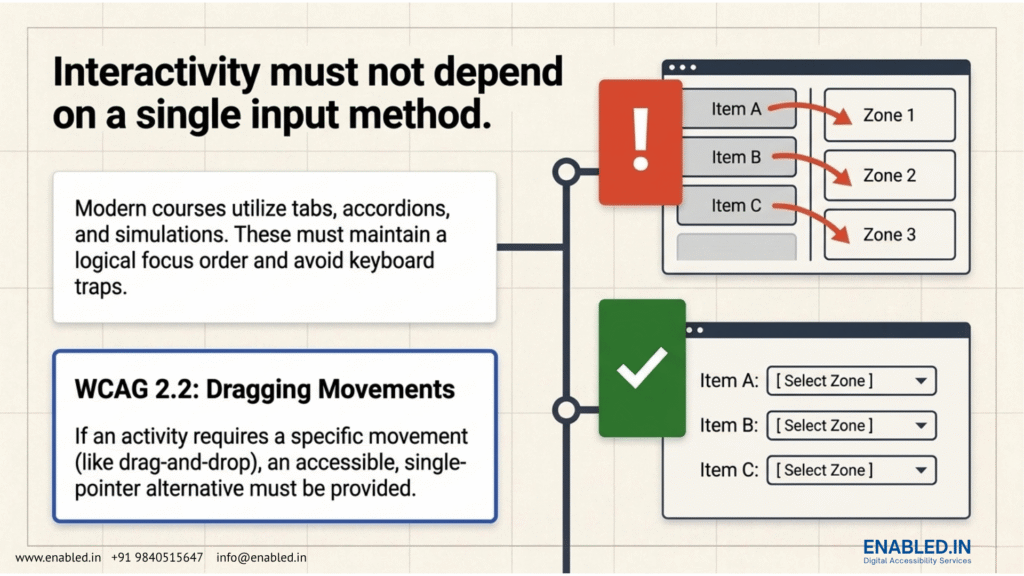
Modern LMS courses often include interactive activities.
Examples include:
- Tabs
- Accordions
- Simulations
- Knowledge checks
- Matching activities
- Drag-and-drop exercises
- Interactive diagrams
These activities should not depend on a single way of interacting.
WCAG 2.2 includes a specific requirement related to dragging movements, which can be relevant to drag-and-drop learning activities.
How Enabled.in can help
Enabled.in can manually test interactive activities for:
- Keyboard access
- Focus management
- Instructions
- Labels
- Feedback
- Alternative interaction methods
- Dynamic content
9. Take Quizzes and Assessments
Assessments are a critical part of the learner journey.
A learner should be able to:
- Read questions
- Select answers
- Enter responses
- Navigate between questions
- Review answers
- Understand errors
- Submit the assessment
- Understand results
Test different question types because accessibility can vary between them.
Also review:
- Timers
- Required questions
- Error messages
- Review screens
- Submit controls
- Results pages
How Enabled.in can help
Enabled.in can assess quizzes and assessments using manual accessibility testing and relevant assistive technologies.
The goal is to determine whether learners can complete the assessment and understand the information provided to them.
10. Submit Assignments
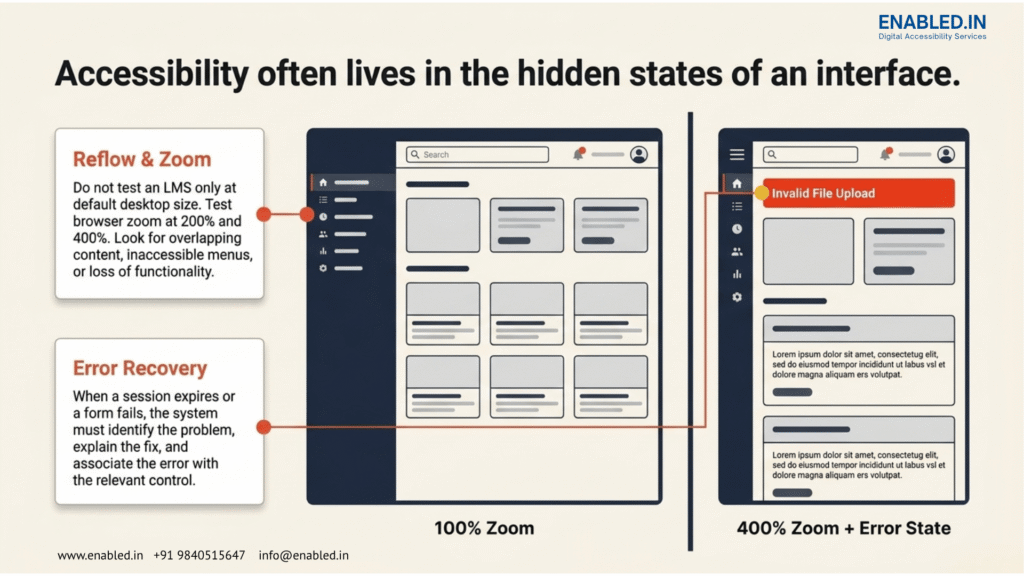
Assignment submission should also be accessible.
Test:
- File uploads
- File selection
- Drag-and-drop
- Alternative upload methods
- Text fields
- Rich-text editors
- Required fields
- Error messages
- Submission confirmation
A learner should not be forced to use one interaction method if an accessible alternative is required.
How Enabled.in can help
Enabled.in can test assignment submission from the learner’s point of view, including upload controls, alternative methods, errors, and confirmation messages.
11. Participate and Communicate
Learning often includes communication with instructors and other learners.
An LMS may provide:
- Discussion forums
- Comments
- Messaging
- Announcements
- Notifications
- Rich-text editors
- File attachments
These features should also be accessible.
How Enabled.in can help
Enabled.in can review communication workflows. They test whether learners can read messages. Learners also need to create, reply to, and submit messages using supported input methods.
12. Track Progress
Learners need to understand where they are in their course.
They may need to see:
- Completion percentage
- Completed lessons
- Remaining lessons
- Scores
- Grades
- Course status
- Progress bars
- Charts
The same information should be understandable to users who cannot rely on visual presentation alone.
A progress bar should communicate useful status information, not simply display a visual shape.
How Enabled.in can help
Enabled.in can assess progress indicators, status messages, charts, grades, alerts, and other learner-status information.
13. Receive Feedback
Feedback is an important part of learning.
Learners may receive:
- Instructor comments
- Grades
- Assessment feedback
- Notifications
- Alerts
- Recommendations
The learner should be able to find and understand this information.
How Enabled.in can help
Enabled.in can review feedback workflows and determine whether important updates, status messages, and instructor comments are accessible.
14. Complete the Course and Download a Certificate
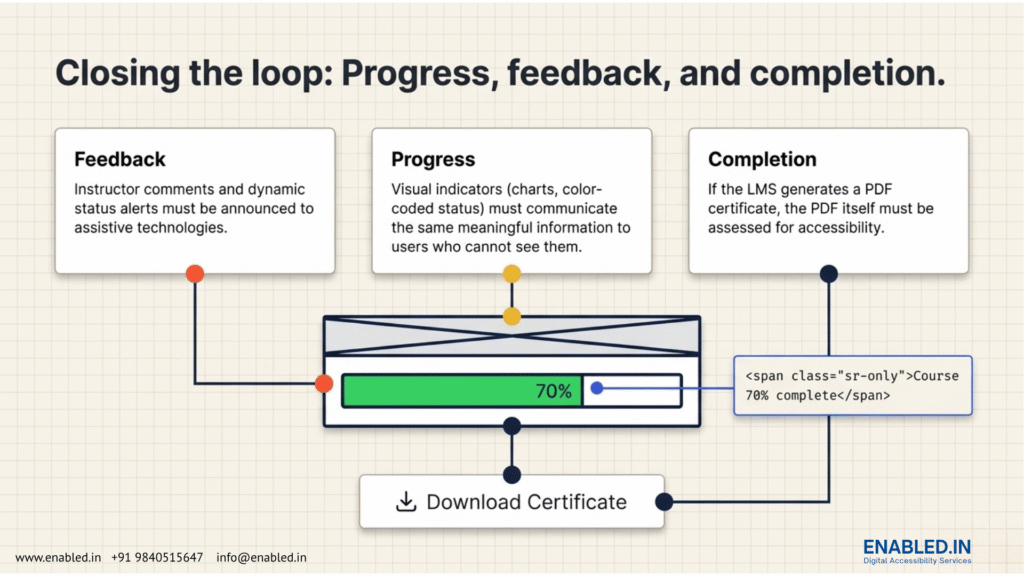
The learner journey does not end with the final lesson.
The learner may need to:
- Confirm course completion
- Generate a certificate
- Download the certificate
- Open the certificate
- Store or share the certificate
If the certificate is an inaccessible document, the learner may face a barrier even after completing the course.
How Enabled.in can help
Enabled.in can assess the course-completion workflow, certificate generation, download controls, and document accessibility where applicable.
FAQs About LMS Accessibility Assessment
An LMS accessibility assessment reviews whether learners with different abilities can access and navigate the LMS. It checks if they can understand, interact with, and complete learning activities throughout the platform.
An LMS should be accessible so learners can independently participate in learning activities. Accessibility barriers in login, navigation, content, assessments, assignments, feedback, or completion can prevent learners from completing their learning journey.
It should include the complete learner journey. This encompasses login, navigation, and course discovery. Enrollment, content, and media are also part of the journey. Quizzes, assignments, and communication are important components. Feedback, progress, and certificates need inclusion as well. Settings, errors, and assistive technology round out the journey.
A VPAT® is a template used to document how an ICT product reports conformance with applicable accessibility standards. A completed VPAT for a product becomes an Accessibility Conformance Report (ACR).
No. An LMS platform may be accessible while individual course materials contain inaccessible PDFs, videos, images, quizzes, or interactive activities.
Talk to Enabled.in About LMS Accessibility
Is your LMS accessible throughout the complete learner journey?
Enabled.in can help organizations assess LMS and e-learning accessibility across WCAG requirements. It also covers learner workflows and assistive technologies. Additionally, Enabled.in evaluates learning content, real-user testing, and VPAT®/Accessibility Conformance Report requirements.
Get an LMS Accessibility Assessment
Email: info@enabled.in
Phone: +91 98405 15647
eLearning Accessibility : eLearning Course Accessibility Audit and Testing Services
What can you discuss with the Enabled.in team?
- LMS accessibility assessment
- e-Learning accessibility testing
- WCAG accessibility testing